
Manage nightly availability and Airbnb
Set nightly prices and restrictions, review imported Airbnb homes, and verify saved availability and channel synchronization.

Chris Luke
4 min read
Use the nightly calendar to set the price and availability for a particular home and date range. A connected Airbnb listing can share supported rates, restrictions and stays with KrabiClaw. Check the exact home, local dates and synchronization outcome.
Open the right home's calendar
Select your business, open Catalog, then open the home and Nightly price → Open nightly calendar. You can also open Calendar and choose the home from Offering.
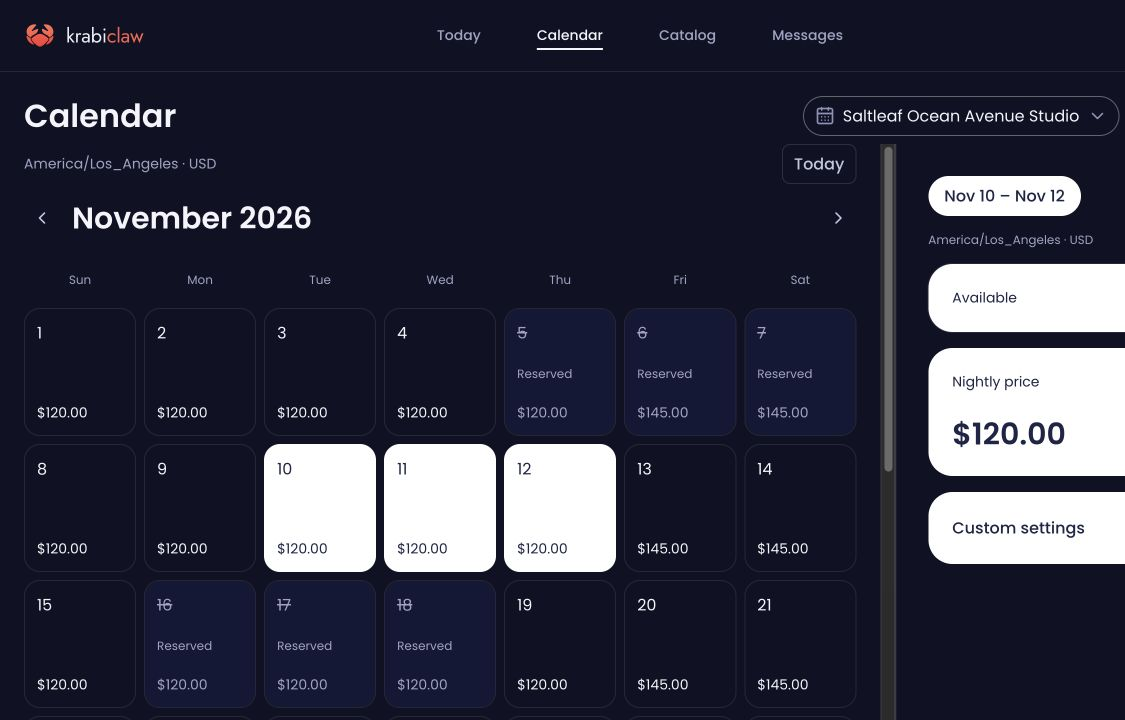
Check the displayed timezone and currency. They belong to the home's location. The base Nightly price and default Availability apply when a night has no override.
Select nights and edit their settings
Choose Select nights, enter Start night and optional End night, then choose Edit selected nights. The end night is included in this editing range; it is not the guest's checkout date.
Use Open selected nights to open or close the selection, Nightly price for a date-specific price, or Custom settings for minimum nights, maximum nights, and check-in or checkout restrictions. Open the setting, make the intended change and choose Save. Choose Cancel if you are only inspecting it.
Minimum nights on arrival and Minimum nights through stay are separate rules. Clear an override to use the home's default. Reset all night settings removes the selected nights' overrides. Closing nights does not cancel existing stays or payment holds.
Verify effective availability
Reopen the calendar and read the affected dates. Check effective prices and open or closed state, then inspect the public home's date picker for the guest-facing result. Reserved nights and checkout holds still constrain what guests can book.
A host-entered stay records an operational decision and can be entered outside published nightly rules. It does not prove that guests can book closed nights or ignore minimum stays. A recorded offline payment documents money handled elsewhere; it does not collect money.
Connect Airbnb and review imported homes
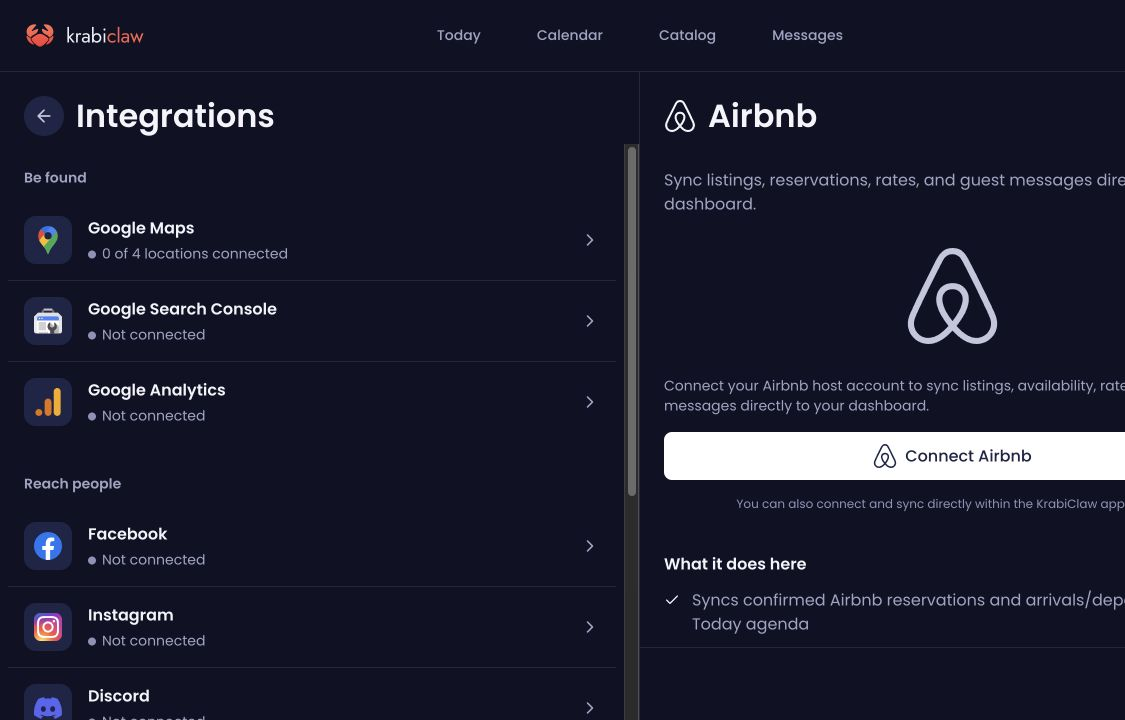
An Owner or Admin opens Integrations → Airbnb and chooses Connect Airbnb. Complete the supported provider connection for the correct host account. KrabiClaw uses Channex for the supported Airbnb connection; provider requirements still apply.
Review the exact listing and any missing details before requesting synchronization. A listing-sync request checks the live-home allowance for the whole selection before it queues work. For a new listing, KrabiClaw imports its home and continues through setup and activation in the background; there is no separate activation request. A draft is an intermediate state, not the finished result of an approved sync request.
The app does not need to stay open while the work continues. Check each selected listing's progress until it is done or reports a failure. The web connection page shows Imported or Not imported; an Imported badge alone does not prove synchronization is complete. The connection applies to the selected account and listings, not every home or booking channel.
Check synchronization and channel-owned stays
After a rate, restriction or availability change, check the saved calendar and the connected listing's current synchronization result. A saved KrabiClaw edit does not prove Airbnb accepted it. Read any failure, correct its cause and recheck the affected listing.
Supported check-in and checkout times, pet/smoking/event rules, cancellation policies and minimum-stay settings can also be sent to Airbnb through Channex. Airbnb's allowed values still apply. Titles, descriptions, photos, amenities, guest counts, check-in instructions, Wi-Fi, directions and the house manual must be updated separately on Airbnb. A content refresh keeps fields you edited in KrabiClaw. Website Listing status does not change whether the Airbnb listing is listed or unlisted.
Stopping synchronization preserves the home, its content, calendar and stays. It becomes a free draft only if it is not still published on your website. Confirm the stopped state before assuming synchronization or live-home billing has ended.
Confirmed Airbnb reservations appear with dates and arrival or departure activity. Channel stays remain read-only where the channel owns the change: amend or cancel the reservation through its original channel, then verify the result in KrabiClaw. Do not create a second direct stay to imitate a channel change.
Guest messages need the corresponding conversation and working delivery channel. Read Prepare arrival guides and guest messages for private instructions and delivery checks.
Use a connected assistant
Name the home and local date range explicitly and ask the assistant to read the calendar before proposing a change. Try: “Show this home's nightly prices and closed dates for 10–12 November in its timezone. Explain restrictions without changing anything.”
The MCP tool reference describes stay calendars, nightly rules, stay changes and access requirements. Re-read the saved calendar after an authorized update, then check the public or connected-channel result.
For listing setup and payment requirements, read Set up a lodging website.