
Prepare arrival guides and guest messages
Save private arrival details for each home, share them through the correct guest conversation, and check scheduled messages and delivery.

Chris Luke
4 min read
Keep a private arrival guide for each home, then share the right instructions in that guest’s conversation. Saving the guide keeps it ready for your team; it does not publish the instructions on your website or send them to a guest.
Before you start
Choose the business and home you mean to update. Owners and Admins can edit arrival details; assigned team members can read the homes they look after. If you still need to create the home, start with Set up a lodging website.
1. Prepare the home’s arrival details
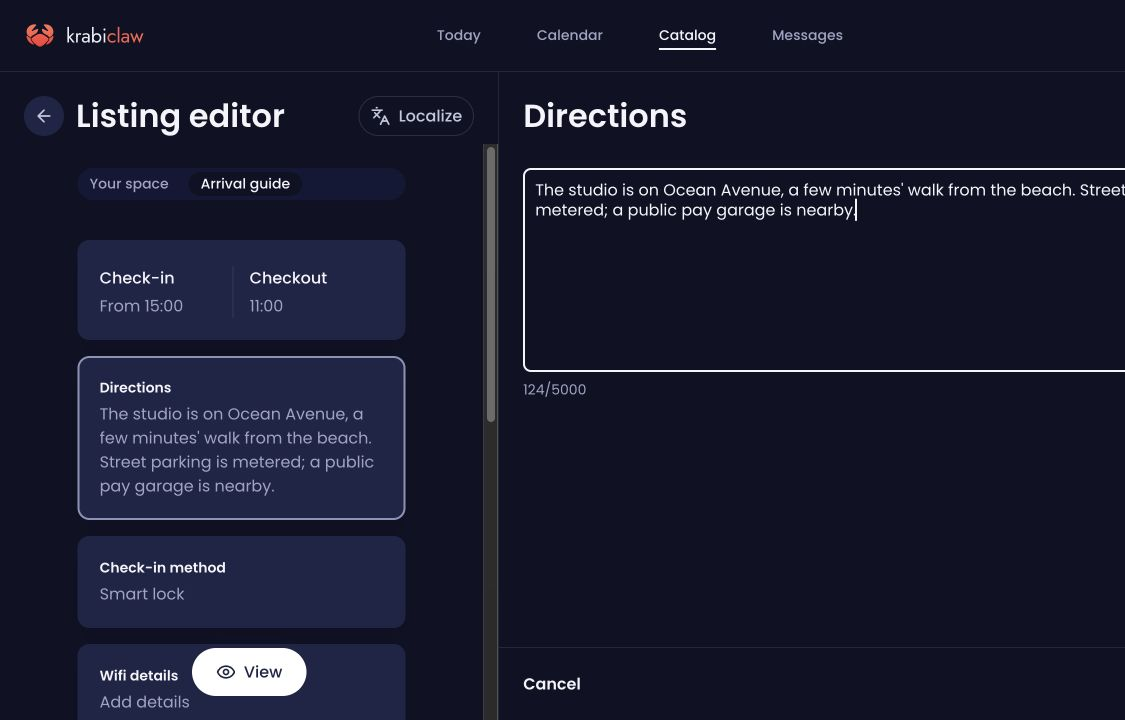
Open your homes, choose the home, then select Arrival guide. Open the detail you want to change:
- Directions for how to find and reach the home.
- Check-in method and Check-in instructions for how guests enter.
- Wifi details for the network and password.
- House manual for how things work during the stay.
- Checkout instructions for the essential tasks before leaving.
Save each edited detail. Use information specific to this home, and keep door codes, wifi passwords and other private access details out of your public listing.
2. Review the private guide
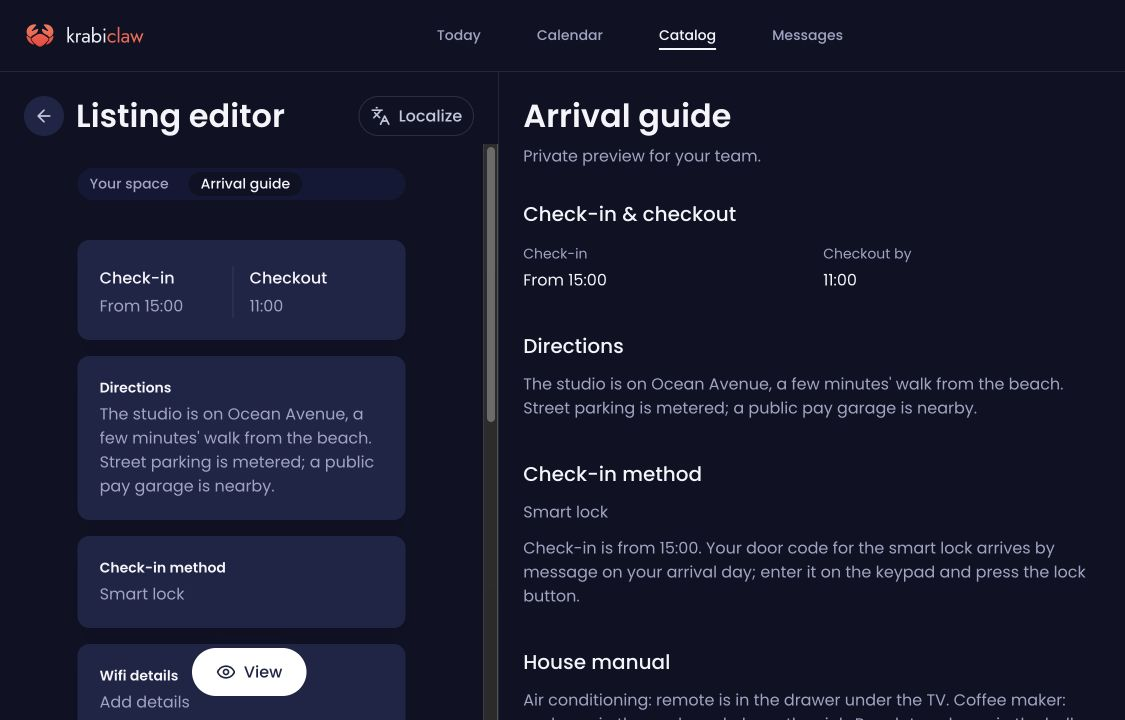
Open the Arrival guide preview and check the check-in window, checkout time and saved instructions together. The preview is labeled Private preview for your team. Check that it describes the correct home and that you have included the details guests actually need.
The home's House rules and arrival times are also shown in the guide. Changes to a home's listing or booking rules should be checked separately on its public page; saving private directions or wifi details does not publish those fields.
3. Share instructions through the guest conversation
Open Messages, select the correct guest conversation and check its home and stay dates before replying. Share only the details that guest needs at that time.
Direct conversations use email when a guest email address is available. If a direct guest has no email, they must accept an invitation to the conversation before replies can reach their KrabiClaw inbox. A phone number alone does not enable an email reply.
A mapped Airbnb conversation uses Airbnb through the connected channel, even when Airbnb withholds the guest's email. Photo replies through Airbnb are unavailable here. Check the conversation's reply controls rather than switching to an unrelated address.
Review your wording and recipient before sending. Read the conversation afterward to confirm the saved reply and its delivery result. A failed or unknown send needs attention; do not send a duplicate just to find out whether the first attempt worked.
Saved replies and scheduled messages
A saved reply can be kept without an automatic schedule. A schedule names the homes it applies to and uses each home's timezone. Supported timings are five minutes after a new direct reservation is received, or a chosen local time up to seven days before or after check-in or checkout. Airbnb stays receive check-in and checkout schedules, rather than the new-reservation timing.
Scheduled time and delivery are different states. Review the scheduled message and the guest conversation's delivery receipt. A pending message can be cancelled; an in-flight or completed send cannot be recalled. Editing a saved reply does not recreate a failed or uncertain delivery.
Use your connected assistant
Ask the assistant to read the actual home behind the conversation with get_guest_messaging_context before preparing instructions. update_stay_arrival_guide saves private guide fields; it does not send them. Saved replies and schedules use list_message_templates, create_message_template and update_message_template.
Try: “For this guest conversation, read the home and stay dates, then draft a check-in reply from that home's saved instructions. Show me the draft without sending it.”
If those tools are missing from your chat, refresh the KrabiClaw connection. See Handle inquiries and reservation requests for conversation checks, or Manage nightly availability and Airbnb for dates, prices and connected-calendar changes.