
Set up a lodging website
Create a home listing, set nightly prices, publish it and check the requirements for direct stay payments.

Chris Luke
4 min read
Build a lodging website with a page for each home, clear nightly prices and a way for guests to inquire or book. Home details, stay calendars and guest conversations use the same KrabiClaw account in the dashboard, connected assistants and the iPhone companion app.
Before you start
Use an Owner or Admin account and select the lodging business before editing. Have the home's real name, address, timezone, guest capacity, nightly price, photos and house rules ready.
Check the current plans and home allowances. Draft homes are free. Live homes count separately from ordinary business locations; a home's location is not charged again as a business location. A home counts when it is active at an active location and is published on your website or enabled for connected Airbnb synchronization. Existing subscriptions can retain their original terms.
Direct stay booking with online payment requires Business and completed Stripe setup. Without online payments, public home listings can take inquiries. The iPhone companion adds no separate app subscription; permissions and plan capabilities still apply. Installation depends on your account's available distribution access.
Add a place to stay
Complete website setup, then open Catalog. Choose Add, select Place to stay, and continue with Next: Name. Enter the real home name and complete Stay settings, including its location. Follow the remaining required sections and create the home.
A new home starts as a draft. Creating it does not make it public or connect it to Airbnb. Choose the location carefully: it determines the home's address and timezone.
Complete the listing and nightly price
Open the home in Catalog. In Your space, check Title, Property type, Rooms and beds, Number of guests, Description, Amenities, Location, House rules, Guest safety, and Cancellation policy. State only verified facts, including accessibility features.
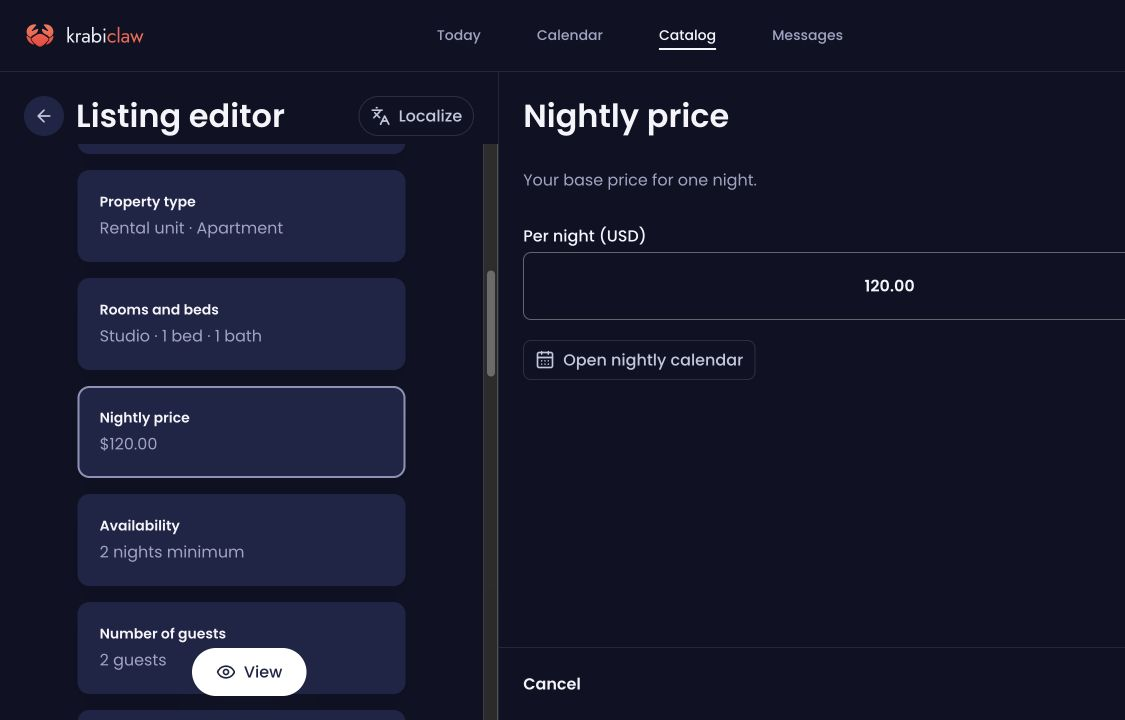
Use Photos to organize real images by room or space. The public photo tour appears when every room has a photo. Use Nightly price for the base price for one night, and Availability for the default minimum stay. Review each edit and select Save.
For date-specific prices or closed nights, use Open nightly calendar. Read Manage nightly availability and Airbnb before changing a range.
Publish the home
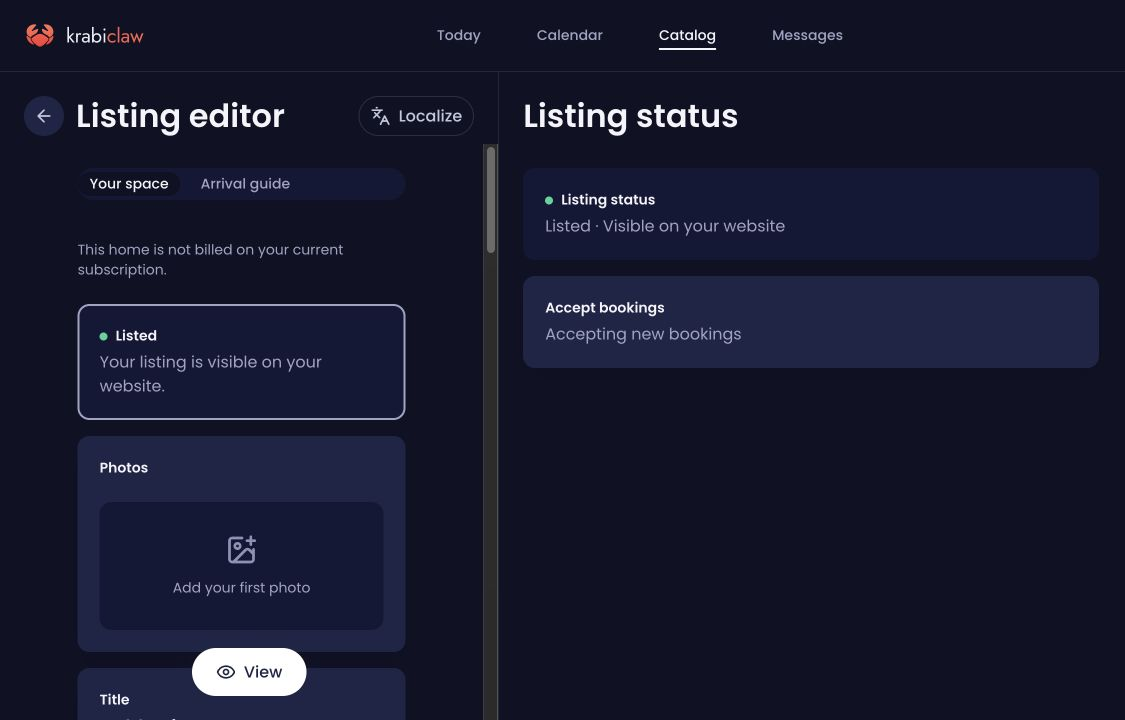
Open the home's Listing status. Listing status controls website visibility; Accept bookings controls whether it accepts new bookings. Check both settings for the intended outcome.
A published home needs its location and nightly price. If an error or home-allowance limit appears, publication has not completed: correct the named issue and check again. Unlisting does not cancel existing stays. A connected Airbnb home can still count toward your allowance when it is not published on your website.
Direct stay payments
Business includes direct stay booking with online payment. Manage the subscription in Plan and billing, and complete the business's Stripe setup in Payments. Pricing lists the current subscription, allowances and fees.
When payments are ready and the home is listed and accepting bookings, guests choose available nights and pay the full quoted amount on your site's payment page. Checkout temporarily holds the nights. Successful payment creates a confirmed direct stay and its guest conversation; an expired hold releases the nights. An unpaid checkout or inquiry is not a confirmed paid stay.
Host-entered stays and recorded offline payments are different: recording an amount documents money handled elsewhere and does not charge a guest. Refunds use the actual Payments flow; editing cancellation policy text does not automate a refund.
Check the public result
Open the home's public page in a signed-out browser. Check the name, photos, address-sharing settings, amenities, house rules and cancellation wording. Try available dates and guest counts up to the final review step without placing a real booking just to test it.
Confirm the nightly price and restrictions. If online booking is unavailable, check Business access, Stripe readiness, listing visibility, accepting-bookings status and the selected nights. For a completed payment, read the confirmed stay and payment result in the dashboard rather than relying on a checkout screen.
Prepare for guests
Set up private arrival guides and guest messages. Assign the people who look after each home through Looked after by. Members see assigned homes; Owners and Admins manage the business.
Try: “Read this home's listing and calendar, then tell me what is missing before it can accept direct paid bookings. Do not publish, charge or message anyone.”