
Create and publish your first site
Choose your business type, complete website setup and verify the public result. Lodging homes are added in Catalog after setup.
5 min read
Create your business website through KrabiClaw's guided setup, review its preview, then explicitly choose Create my site. Restaurants, experience operators, law firms and lodging businesses use the same setup flow. Lodging homes and their nightly calendars are configured in Catalog after the site exists. ChatGPT is optional.
Before you start
Sign in to your KrabiClaw account, then open website setup. Have your business name, source language, location timezone and pricing currency ready. You can also add the business address, contact number, hours, logo and real photos.
The first setup draft is saved after you confirm the pricing currency. Earlier answers are included in that save; completing later steps saves the draft again. Saving a draft does not publish your site. Review restored answers before creating the site.
1. Choose your business type
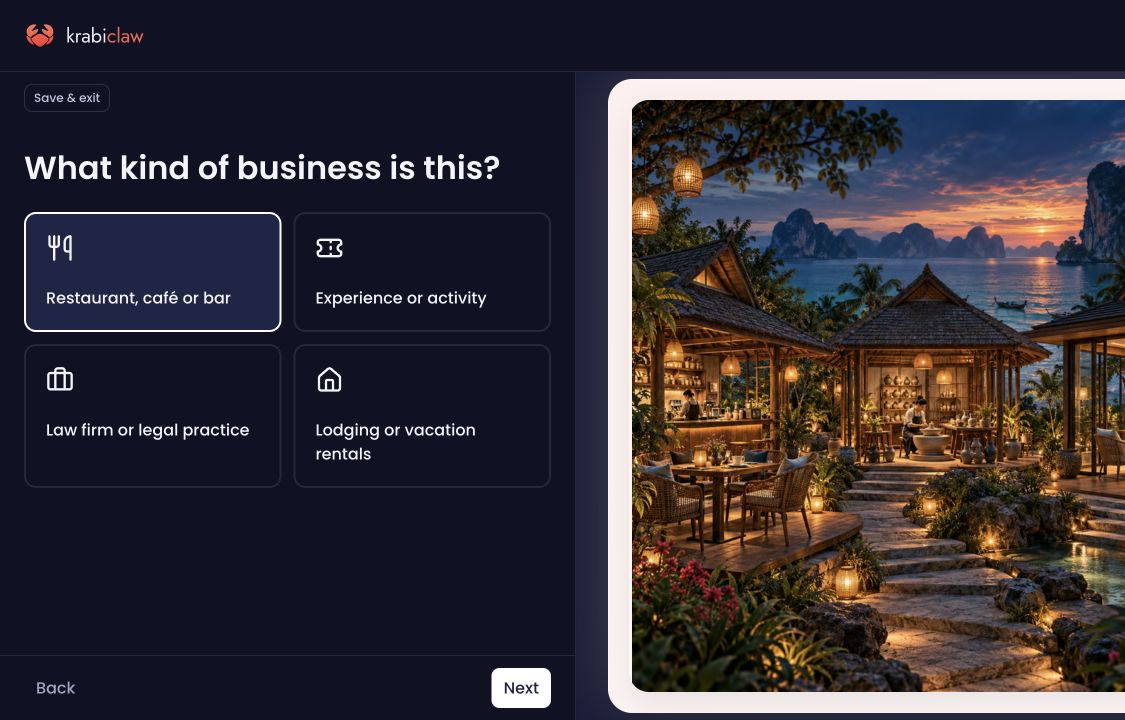
Choose Restaurant, café or bar; Experience or activity; Law firm or legal practice; or Lodging or vacation rentals. Select the type you actually operate; it determines which setup steps and starting content apply to your business.
2. Choose the source language
Select the language in which you will write the website. Additional languages are authored separately.
3. Name the business
Enter the business's actual Name. To import an existing listing, choose Import from Google Maps, search for the business and select the exact listing. Check any imported facts. If the listing is unavailable, choose Enter details manually. The picker searches business names; it does not require a pasted Google Maps URL.
4. Check the address
Enter the available address details and check them for accuracy. This address step is optional. A lodging home has its own address and timezone, configured when you add it in Catalog after website setup.
5. Check timezone and optional hours
On When are you open?, confirm the location's timezone and choose Save hours. Opening hours are optional, but a valid timezone is required. Check any suggestion from the country before continuing.
Add accurate opening hours before relying on the site to tell customers when to visit.
6. Choose your currency
Confirm the currency you charge in. The country may suggest a currency; choose another if needed. A pricing currency is required for every business type before continuing. The first draft is saved after you confirm it.
7. Add contact details, if you want
Enter a valid number customers should use to contact the business, or skip this optional contact step. Notification preferences are configured separately; this is not a manager alert-number setup screen.
8. Add your first offerings, if applicable
Restaurants and experience businesses can add initial menu items or offerings. This step is optional, so you can continue and add them later. Law firms and lodging businesses skip this step. Homes need their own location and stay settings in Catalog after setup.
Only enter real names and prices. Adding an offering here does not by itself verify a complete customer booking or payment flow.
9. Set the homepage look
On Last look at the front of house, review the homepage headline and optional brand color, logo and hero photo. Add real, accurate content and wait for uploads to finish. This look step can be completed later.
Use a clear headline to explain what the business offers. You can return to branding after setup.
10. Review, then choose Create my site
Review the site preview and your answers. Use Back to correct details before continuing. A private preview is for review; it is not proof that the public site is live.
When you are ready, choose Create my site. This is the explicit activation step. Wait for it to succeed and for KrabiClaw to open the site dashboard. If an error appears, read it and correct the problem rather than assuming creation finished.
For lodging: add homes after setup
Creating the website does not create a home, activate an Airbnb import or enable online payments. Open Catalog, choose Add → Place to stay, and complete the required home settings. Follow Set up a lodging website, then Manage nightly availability and Airbnb and Prepare arrival guides and guest messages.
Draft homes are free. Publishing a home or enabling its Airbnb synchronization checks the live-home allowance. Direct stay payments require Business and completed Stripe setup; see the current plans.
Check the public result
Open the site's public address from the dashboard. Then check it in a private browser window without a preview token or signed-in preview session.
- The site opens as a customer would see it
- The business name, headline, address, phone, and hours are accurate
- Any displayed offerings and prices are correct
- The main button leads to the intended page, phone number, or customer action
- Photos and text look usable on a phone as well as a larger screen
Do these checks before sharing the address. A working preview and a working public site are different checks.
For lodging, check each published home's actual listing, nightly price and available dates. An empty new catalog is expected until you add your own homes; do not add placeholder listings.
Troubleshooting
The Google Maps picker does not find my business. Try its business name and location, choose only the correct listing, or use Enter details manually.
A step cannot continue. Check the required name, source language, valid timezone or currency and read the displayed error. Address, contact number, opening hours, initial offerings and the look step are optional.
I left before finishing. The first draft is saved after you confirm the pricing currency. Return to website setup with the same account and choose Pick up where you left off when offered. Review restored answers before creating the site.
Creation returned an error. Keep the saved draft and address the displayed error. Check the dashboard for an existing site before starting another setup.
Next step
Next, make your first site edit and verify it on the public site. You can also customize your brand and theme, or connect ChatGPT if you prefer conversational edits.